Vincent Chu Engineering Leadership | Scale | Execution

Product-minded engineering executive for ambitious software organizations.
Apple, Electronic Arts, SaaS scaleups, analytics, and applied AI.

Sheet Watch app icon

Native iPhone and Apple Watch spreadsheet utility

Sheet Watch

Keep one important spreadsheet value visible on your wrist.

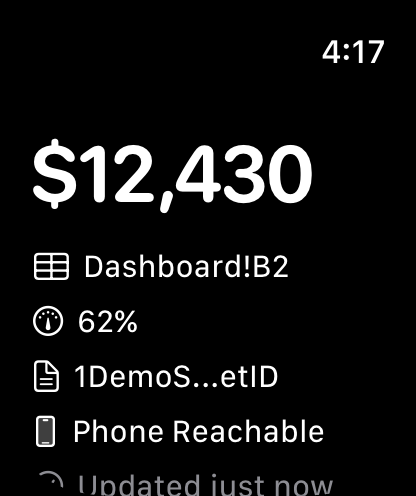
Choose a cell in the iPhone app, refresh it when needed, and see the latest value in the companion watch app or as a watch face complication.

One cellTrack the spreadsheet value that matters most.
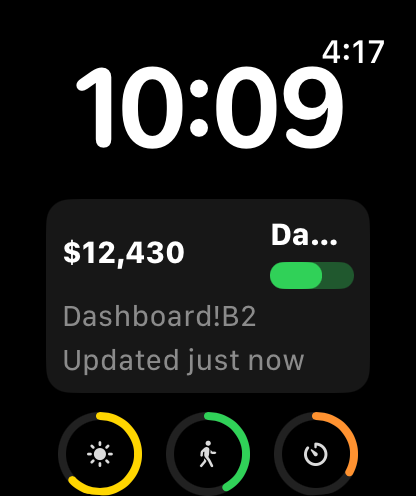
Watch faceComplications for circular, rectangular, inline, and corner families.
Version 1.0Native SwiftUI app for iPhone and Apple Watch.

Built for glanceable data

Some numbers are worth checking without opening a dashboard: an OKR, quota, inventory count, balance, support queue, or personal tracker. Sheet Watch focuses on one configured spreadsheet cell so the watch view stays quick and readable.

The iPhone app connects to Google Sheets with OAuth, reads the cell range you choose, stores the latest snapshot locally, and sends it to Apple Watch. Demo Mode lets you try the full workflow with local sample data before connecting your own account.

Highlights

A small utility for keeping a live number close.

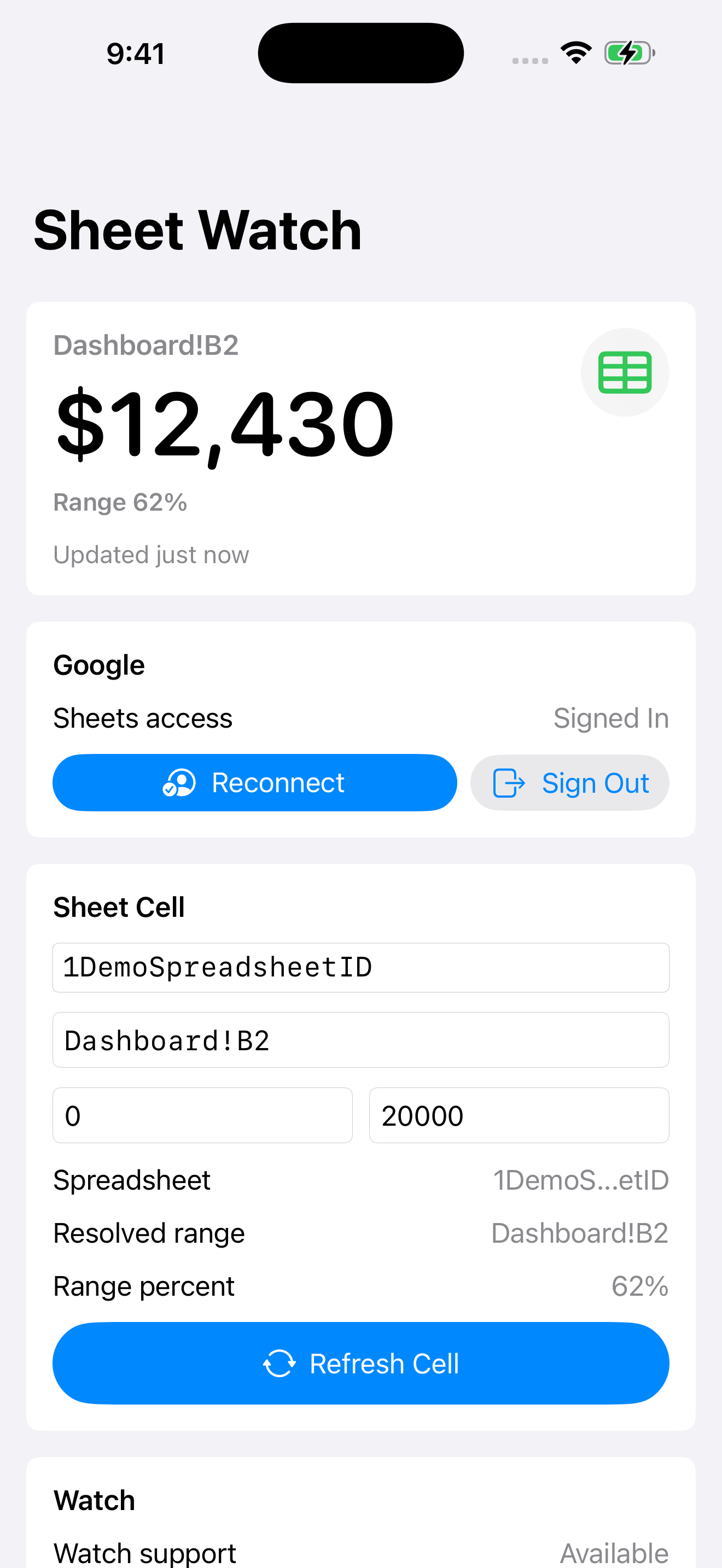
Focused cell monitoringConfigure a spreadsheet ID and A1 range, then refresh the selected value from the phone app.
Watch app and complicationsShow the latest snapshot on Apple Watch and add it to supported watch face complication families.
Optional range gaugeAdd min and max bounds for numeric values so progress, quotas, and thresholds are easier to scan.
Privacy-conscious designNo backend service, no analytics, and no app-controlled cloud sync for your spreadsheet data.

Screenshots

Sheet Watch iPhone app showing a configured spreadsheet cell value and gauge Sheet Watch Apple Watch face complication screenshot Sheet Watch Apple Watch app screenshot

Workflow

1. Connect or demoUse Demo Mode with sample data, or sign in and connect to your own spreadsheet.
2. Choose a cellEnter the spreadsheet ID and a range such as Dashboard!B2 for the value you want to watch.
3. Refresh the snapshotFetch the latest value on iPhone and share the stored snapshot with Apple Watch.
4. Check your wristOpen the watch app or add a complication so the latest value is available at a glance.

Built as a focused utility

One spreadsheet value, always easy to check.

Sheet Watch is built with native SwiftUI for iPhone and Apple Watch. The latest cell snapshot is stored locally for display on paired devices.

Download on the App Store